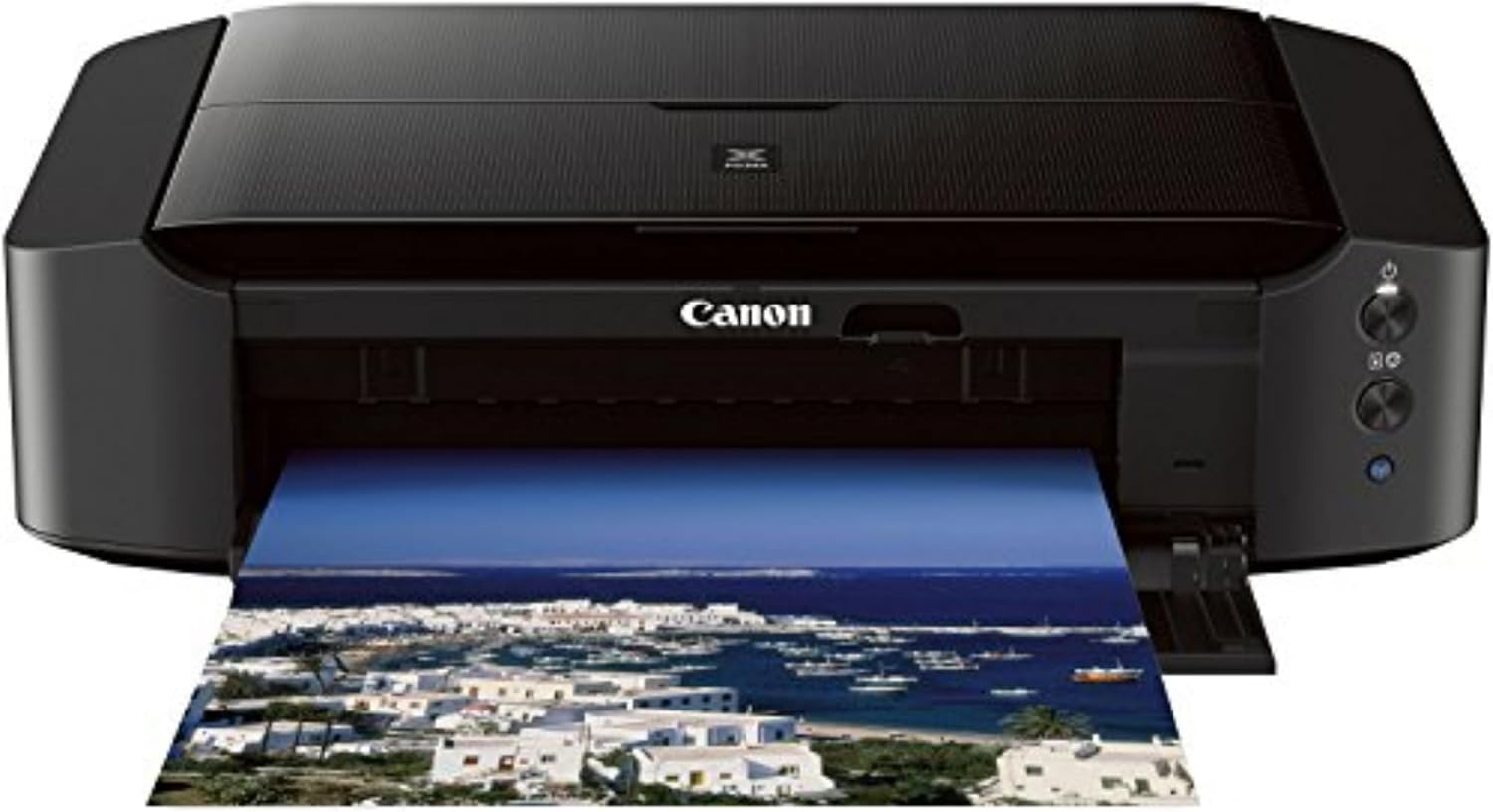
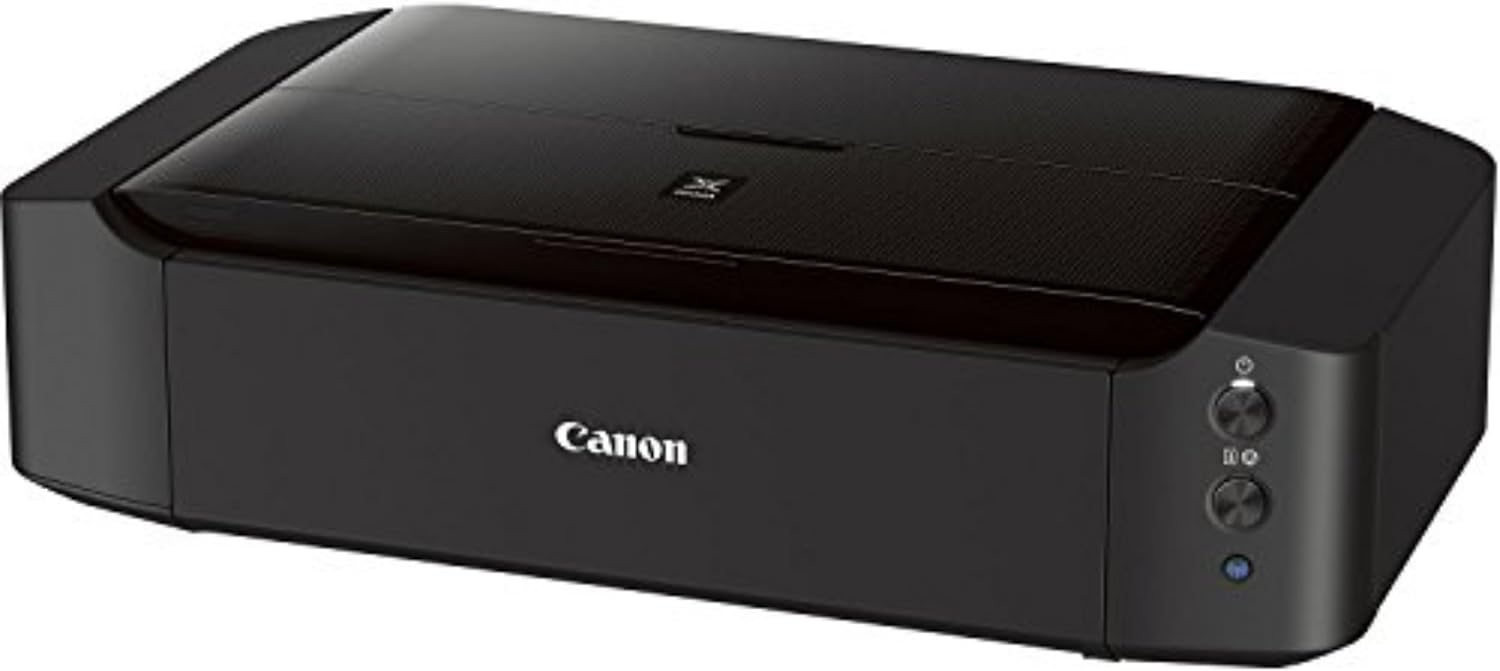
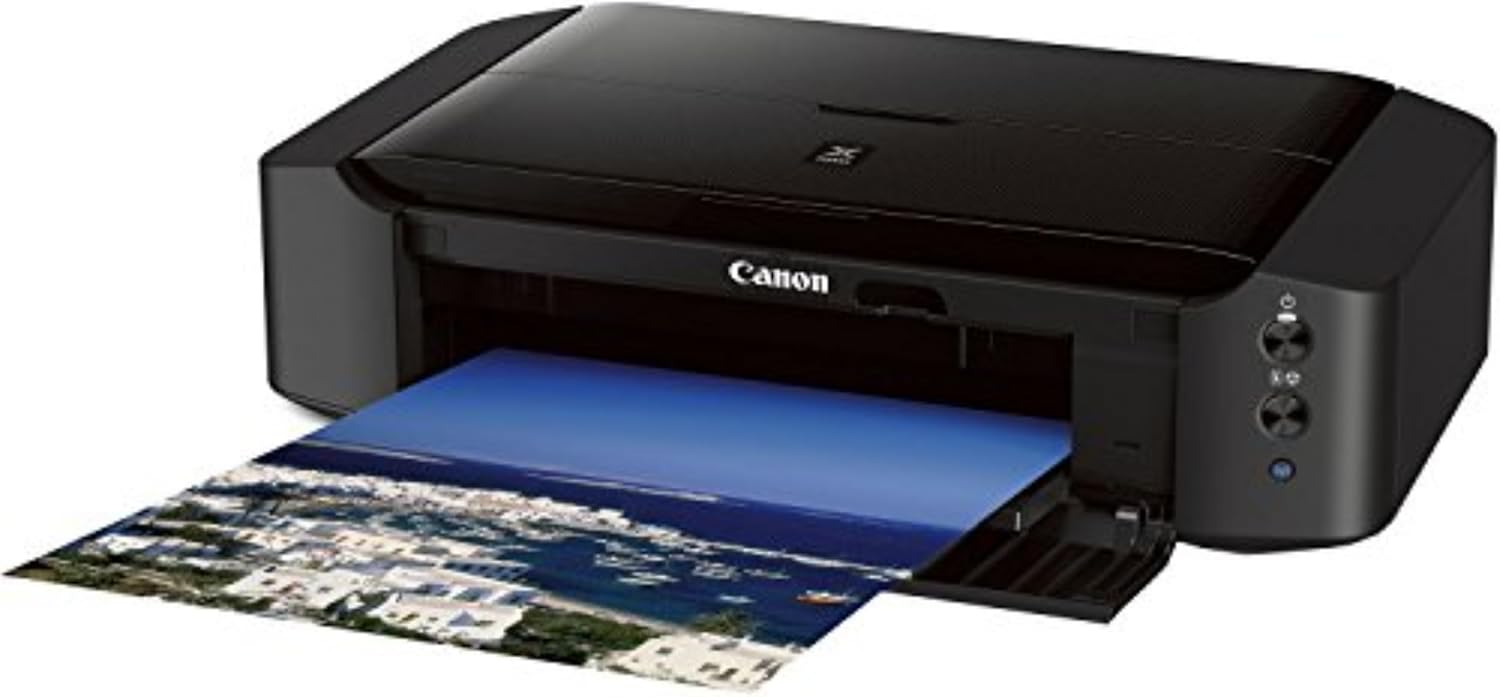


Canon IP8720 Wireless Printer, AirPrint and Cloud Compatible, Black
This is an affiliate link. Buyyyah may earn a commission if you buy through it, at no extra cost to you.
Description
• Don't get stuck in an 8 inches x 10 inches world; Print your favorite photos up to 13 inches x 19 inches • With a 6 color ink system including gray ink and 9600 x 2400 maximum color dots per inch, the results are incredible quality and amazing detail in your black & white and color photos. Noise level: Approx. 43.5 dB(A) • Print wireless from any Wi-Fi enabled computer around the house; Ink droplet size: 1, 2 and 5 • Note: Kindly refer to the user manual provided as a PDF manual in the product description section • Ink compatibility : PGI 250 Pigment Black XL, CLI 251 Cyan XL, CLI 251 Magenta XL, CLI 251 Yellow XL, CLI 251 Gray XL, CLI 251 Black XL , PGI 250 Pigment Black, CLI 251 Cyan, CLI 251 Magenta, CLI 251 Yellow, CLI 251 Gray, CLI 251 Black
Details
General Specifications
- Brand
- Canon
- Model Name
- PIXMA iP
- Model Number
- 8746B002
- Series Number
- 8746
- Model Series
- PIXMA iP
- Manufacturer
- Canon
- Item Type Name
- Inkjet Printer
- Unit Count
- 1.00 Count
- Color
- Black
- Display Type
- LCD or LED
- Processor Count
- 1
- Number of Trays
- 1
- Control Method
- App
- Controller Type
- Android, iOS
- Compatible Devices
- PC
- Additional Printer Functions
- Print Only
- Scanner Type
- document
- Built-In Media
- 1
- Specific Uses For Product
- business
- Printer Type
- Inkjet
- Printer Output Type
- Color
Printing Specifications
- Resolution
- 9600 x 2400
- Maximum print Resolution Color
- 9600 x 2400 dpi
- Maximum Print Resolution Black and White
- 9600 x 2400 dpi
- Color Depth
- 48 bpp
- Color Pages per Minute
- 10.4 ppm
- B&W Pages per Minute
- 14.5 ppm
- Maximum Copy Speed Black and White
- 14.5 ppm
- Maximum Copy Resolution Color
- 9600 x 2400 dpi
- Maximum Copy Resolution Black and White
- 9600 x 2400 dpi
- Duplex
- Manual
- Ink Color
- Black, Gray, Cyan, Magenta, Yellow
- Print media
- Glossy photo paper
- Other Special Features of the Product
- Borderless Printing,Auto Power On,CD-Printing, Auto Power Off
Paper Handling
- Maximum Media Size
- 13 x 19 inch
- Maximum Sheet Capacity
- 150
- Paper Size
- 8.50 x 11, 8.50 x 14, 11 x 17, 4 x 6, 5 x 7, 8 x 10, 13 x 19
- Output sheet capacity
- 150
Connectivity
- Printer Connectivity Type
- Wi-Fi, wired
- Hardware Interface
- USB, USB 2.0
- Total USB 2.0 Ports
- 2
- Total Usb Ports
- 2
Physical Specifications
- Item Weight
- 18.6 Pounds
- Item Dimensions D x W x H
- 13.1"D x 23.3"W x 6.3"H
Warranty
- Warranty Type
- limited warranty
- Warranty Description
- 1 Year Manufacturer Limited
Frequently asked questions
- What is the maximum print size this printer supports?
- It prints photos up to 13 inches x 19 inches.
- Does this printer support wireless printing?
- Yes, it can print wirelessly from any Wi-Fi enabled computer around the house and is AirPrint and Cloud compatible.
- What ink cartridges does it use?
- It uses PGI 250 Pigment Black XL, CLI 251 Cyan XL, CLI 251 Magenta XL, CLI 251 Yellow XL, CLI 251 Gray XL, CLI 251 Black XL, and standard versions of those colors.
Customer reviews

An excellent prosumer printer that stands up to high-use from a professional print designer.
I'm a professional graphic designer and specialize in print work. I've been using this printer in my design studio since 2018 and have printed 5,000+ sheets on it now, and I am still exceptionally happy with it. The print quality is excellent, as good as any of the lower Canon and Epson Pro models I've used. I print photos, posters, invitations, business cards, flyers, greeting cards, vinyl stickers, postcards, envelopes, and more with this for myself, clients, and retail products. I've used up to 140lb watercolor paper and printed branded tissue paper (on a carrier sheet of course) with no issue. I've maybe had 5 paper jams total throughout the life of this printer. I use Canon papers, HP papers, Red River papers (my favorite), and all sorts of off-brand paper, scrapbook paper, cardstock, and printable vinyl. Matte, satin, and glossy. This thing prints like a champ and takes whatever I've thrown at it. Keep in mind that higher-quality papers will always give you higher-quality results, no matter the printer. If you have a color-calibrated monitor and use Canon inks with the proper settings, the color accuracy is excellent. Far better than vista print in color accuracy and quality, in my experience. As with any photo printer, using off-brand inks can and often damages the print heads, in addition to causing color accuracy issues. I get amazingly vibrant, high-color artwork prints out of this machine, the ink quality is amazing. My cost with Canon XL carts for a one-sided, full-color 13x19 glossy highest-quality photo print (which uses the most ink) is roughly $0.009 per square inch or $2.21 per page. OfficeDepo has a great rewards program that includes giving you credit/points for recycling cartridges. I buy most of my tanks from Amazon unless OfficeDepo has a sale, but for every 10 cartridges you recycle, you can get a free XL tank. This isn't a plug-and-play consumer printer though. It takes a few minutes to set up and you have to understand how to use a higher-quality inkjet printer. You have to use the print utility and use the settings appropriately. Almost every bad review I've seen on here is because someone didn't take the time to learn how to use it correctly. If you are tech-illiterate, this isn't the printer for you, and the same will be true for nearly any higher-quality photo printer. Be sure you go to the Canon website and download the drivers offered there, the 8700 driver is great and has a ton of options. Make sure you are using the correct settings for the material you are printing on for the best results. If you think it's too loud, turn on the quiet mode found in the printer utility. You can also adjust the print speed through the utility as well. If you're printing documents, fast printing is fine. If you're printing photos, posters, printable vinyl, or anything ink-heavy (ESPECIALLY on glossy mediums), turn your speed down to the slowest speed for the best results. You CAN set it up without wifi, I set mine up wired at first without issue on my old MacBook Pro. When I replaced my hardware with an iMac, I set it up via the wifi without issue. I've used it over several versions of Mac OS and iOS without issue. I've set it up on two different models of HP laptops as well over wifi without issue. I've used it over several versions of Windows now as well without issue. As with any printer, when you upgrade your operating system to a new version, you may have to redownload the drivers or uninstall and reinstall them, but again that should be understood as that's true of any higher-quality printer. If you have an obstructed wifi signal you may have issues, but that's a given. If your router doesn't have the bandwidth for all the devices using it, you'll have issues, but that's also a given. If you have issues with the wifi, you absolutely can use this printer hardwired as well, and it will print faster. If you have a large print file, you may want to consider hardwiring for that job. When I print multiple copies or multiple pages of 13x19 prints I do this. Be sure to do proper maintenance, which means periodically running cleaning functions, running the print head alignment check, and realigning the print heads with the utility when required (the utility has an automatic function for this you just have to click run and evaluate the test result when complete). These things are true of ANY photo or art printer though. These things will greatly extend the life and quality of your equipment. I have been happier with this printer than I ever expected, especially for this price point!
I'm a professional graphic designer and specialize in print work. I've been using this printer in my design studio since 2018 and have printed 5,000+ sheets on it now, and I am still exceptionally happy with it. The print quality is excellent, as good as any of the lower Canon and Epson Pro models I've used. I print photos, posters, invitations, business cards, flyers, greeting cards, vinyl stickers, postcards, envelopes, and more with this for myself, clients, and retail products. I've used up to 140lb watercolor paper and printed branded tissue paper (on a carrier sheet of course) with no issue. I've maybe had 5 paper jams total throughout the life of this printer. I use Canon papers, HP papers, Red River papers (my favorite), and all sorts of off-brand paper, scrapbook paper, cardstock, and printable vinyl. Matte, satin, and glossy. This thing prints like a champ and takes whatever I've thrown at it. Keep in mind that higher-quality papers will always give you higher-quality results, no matter the printer. If you have a color-calibrated monitor and use Canon inks with the proper settings, the color accuracy is excellent. Far better than vista print in color accuracy and quality, in my experience. As with any photo printer, using off-brand inks can and often damages the print heads, in addition to causing color accuracy issues. I get amazingly vibrant, high-color artwork prints out of this machine, the ink quality is amazing. My cost with Canon XL carts for a one-sided, full-color 13x19 glossy highest-quality photo print (which uses the most ink) is roughly $0.009 per square inch or $2.21 per page. OfficeDepo has a great rewards program that includes giving you credit/points for recycling cartridges. I buy most of my tanks from Amazon unless OfficeDepo has a sale, but for every 10 cartridges you recycle, you can get a free XL tank. This isn't a plug-and-play consumer printer though. It takes a few minutes to set up and you have to understand how to use a higher-quality inkjet printer. You have to use the print utility and use the settings appropriately. Almost every bad review I've seen on here is because someone didn't take the time to learn how to use it correctly. If you are tech-illiterate, this isn't the printer for you, and the same will be true for nearly any higher-quality photo printer. Be sure you go to the Canon website and download the drivers offered there, the 8700 driver is great and has a ton of options. Make sure you are using the correct settings for the material you are printing on for the best results. If you think it's too loud, turn on the quiet mode found in the printer utility. You can also adjust the print speed through the utility as well. If you're printing documents, fast printing is fine. If you're printing photos, posters, printable vinyl, or anything ink-heavy (ESPECIALLY on glossy mediums), turn your speed down to the slowest speed for the best results. You CAN set it up without wifi, I set mine up wired at first without issue on my old MacBook Pro. When I replaced my hardware with an iMac, I set it up via the wifi without issue. I've used it over several versions of Mac OS and iOS without issue. I've set it up on two different models of HP laptops as well over wifi without issue. I've used it over several versions of Windows now as well without issue. As with any printer, when you upgrade your operating system to a new version, you may have to redownload the drivers or uninstall and reinstall them, but again that should be understood as that's true of any higher-quality printer. If you have an obstructed wifi signal you may have issues, but that's a given. If your router doesn't have the bandwidth for all the devices using it, you'll have issues, but that's also a given. If you have issues with the wifi, you absolutely can use this printer hardwired as well, and it will print faster. If you have a large print file, you may want to consider hardwiring for that job. When I print multiple copies or multiple pages of 13x19 prints I do this. Be sure to do proper maintenance, which means periodically running cleaning functions, running the print head alignment check, and realigning the print heads with the utility when required (the utility has an automatic function for this you just have to click run and evaluate the test result when complete). These things are true of ANY photo or art printer though. These things will greatly extend the life and quality of your equipment. I have been happier with this printer than I ever expected, especially for this price point!

Reasonably easy set-up, prints nicely out of PSE or other apps and the photos are gorgeous.
Had this printer two days for use with my Mac and, so far, I love it. Seems very much the successor of my old Canon iP9900, which we bought not too long after it was first manufactured in 2004. Except, this one is smaller, uses fewer ink cartridges (although still very expensive ones) and is heavily oriented toward wi-fi printing. So far, I have just produced a few 11 X 14's and 4X6's but they are really nice looking. I have experimented with printing through PS Elements 13, with Preview, and with the simplistic Canon Easy Photo-Print application. The latter, as promised, is easy as can be, but slow as Christmas. I don't know of any other modern apps that are as slow as this one. But I think Canon has just not improved it in several years. They don't really want you to use it. They would rather you use one of their web applications and they have a bunch of them which you can download with the driver or not. At first, I did not, then later I did, to try them out, then I deleted them all. Now I just have the driver and Easy Photo Print. And I expect most or all of my future printing will be out of PS Elements or Preview. It's kind of a dance figuring out how to configure your color management and print sizes and qualities and all that with multiple print dialogues that come up, from both your printing app and the Canon Driver. This can and should be made a lot simpler and more intuitive. There is a Canon manual, which you can download. So far, I have only skimmed it. I found an article from Red River Paper that was published right after the iP8720 was first sold that is very helpful. It's at: http://www.redrivercatalog.com/infocenter/articles/canon-pixma-ip8720-review-introduction-first-look-getting-started.html . And the Canon Support and Drivers page for this copier is a handy think to keep bookmarked: http://www.usa.canon.com/cusa/support/consumer/printers_multifunction/pixma_ip_series/pixma_ip8720#DriversAndSoftware . Oh, and I first tried to set up my printer via wi-fi to the Mac and Airport Extreme sitting right beside it but it would not install. I blew that off and used a USB connection (you have to use your own USB cord -- it's USB 3 capable, btw). But my wife, in another room, hooked up to wireless on her Mac very quickly, once I had established the connection with USB. I like USB connections to printers anyway, when they are practical. So, anyway, there are grouses, as there always are with computer stuff but, bottom line, the pictures come out quick and they are beautiful! Not only that, the printer itself, while it takes up quite a bit of desk space, is really pretty. Well, if you like black monoliths. The ink cartridges -- very easy to install, btw -- are just "set-up" cartridges to get you addicted so you go out and buy the ridiculously expensive Canon full or extra size ones when you run out. But I see some very good reviews for knock-off printer ink for this copier, such as from Blake Printing Supply. I am inclined to give those a try. Right before we bought this printer, we bought an Epson ET-4500, a new printer that comes with a ton of ink and was supposed to produce excellent photos. But it was an all-in-one. Hence, ugly -- and most of the money spent making it was for stuff I didn't buy it for. Maybe people in offices, knocking out a few pictures here and there, would find it adequate but I found the photos terrible -- and sent the Epson back. This Canon was it's replacement. And based on two days of use, I think I made a very good choice.
Had this printer two days for use with my Mac and, so far, I love it. Seems very much the successor of my old Canon iP9900, which we bought not too long after it was first manufactured in 2004. Except, this one is smaller, uses fewer ink cartridges (although still very expensive ones) and is heavily oriented toward wi-fi printing. So far, I have just produced a few 11 X 14's and 4X6's but they are really nice looking. I have experimented with printing through PS Elements 13, with Preview, and with the simplistic Canon Easy Photo-Print application. The latter, as promised, is easy as can be, but slow as Christmas. I don't know of any other modern apps that are as slow as this one. But I think Canon has just not improved it in several years. They don't really want you to use it. They would rather you use one of their web applications and they have a bunch of them which you can download with the driver or not. At first, I did not, then later I did, to try them out, then I deleted them all. Now I just have the driver and Easy Photo Print. And I expect most or all of my future printing will be out of PS Elements or Preview. It's kind of a dance figuring out how to configure your color management and print sizes and qualities and all that with multiple print dialogues that come up, from both your printing app and the Canon Driver. This can and should be made a lot simpler and more intuitive. There is a Canon manual, which you can download. So far, I have only skimmed it. I found an article from Red River Paper that was published right after the iP8720 was first sold that is very helpful. It's at: http://www.redrivercatalog.com/infocenter/articles/canon-pixma-ip8720-review-introduction-first-look-getting-started.html . And the Canon Support and Drivers page for this copier is a handy think to keep bookmarked: http://www.usa.canon.com/cusa/support/consumer/printers_multifunction/pixma_ip_series/pixma_ip8720#DriversAndSoftware . Oh, and I first tried to set up my printer via wi-fi to the Mac and Airport Extreme sitting right beside it but it would not install. I blew that off and used a USB connection (you have to use your own USB cord -- it's USB 3 capable, btw). But my wife, in another room, hooked up to wireless on her Mac very quickly, once I had established the connection with USB. I like USB connections to printers anyway, when they are practical. So, anyway, there are grouses, as there always are with computer stuff but, bottom line, the pictures come out quick and they are beautiful! Not only that, the printer itself, while it takes up quite a bit of desk space, is really pretty. Well, if you like black monoliths. The ink cartridges -- very easy to install, btw -- are just "set-up" cartridges to get you addicted so you go out and buy the ridiculously expensive Canon full or extra size ones when you run out. But I see some very good reviews for knock-off printer ink for this copier, such as from Blake Printing Supply. I am inclined to give those a try. Right before we bought this printer, we bought an Epson ET-4500, a new printer that comes with a ton of ink and was supposed to produce excellent photos. But it was an all-in-one. Hence, ugly -- and most of the money spent making it was for stuff I didn't buy it for. Maybe people in offices, knocking out a few pictures here and there, would find it adequate but I found the photos terrible -- and sent the Epson back. This Canon was it's replacement. And based on two days of use, I think I made a very good choice.

A fantastic photo printer.
Make no mistake about it, This is a photo printer. I purchased this printer becuase I am a very amateur photographer and wanted to display my work in my mancave. i recently purchased a cheap epson to replace and older HP as i needed an everyday printer (ebay labels, recipes, etc) this printer claimed to print photos, which it does, albeit very poorly. They were not worth framing, or the paper they were printed on. Since I started shooting again, I thought I would look for a photo printer. I started doing some research and came across this printer. With the specs and reviews, i thought Id give it a shot. right out the box, this thing is pretty big considering it has no scanner, or even an lcd screen, it barely fit on my shelf. TKeep in mind this thing prints up to 13x19. which is pretty awesome. It Took a little long to hook up, and wouldnt connect to the network without a usb cable. But once it was all said and done, within 30 minutes i printed my first photo. At first print, i was a little underwhelemed.... .that is until i busted out some older photos printed on a "higher end" HP, and of course the epson i have hoooked up as well. The first thing that stood out was the accuracy of the colors. Even my wife said, "wow, what a difference". as a i started to print more and more photos i started analyzing each print. What was so amazing is how bright and glossy the ink was, compared the epson on its highest setting on the same paper. It actually looks like its printed on different paper. The fact it has 6 inks helps, and it is a dedicated photo printer, doesn't make it a fair comparison. While i'm very happy with the cheap epson i purchased, which is very feature rich for the price, this is my photo printer now. Which will save me ink on my epson. At the end of the day This printer is designed for one thing, PRINTING PHOTOS. (and maybe high quality media such as flyers, etc) Yes you can use it for color printing, and basic printing, but without a scanner or an LCD screen, it makes this thing pretty cumbersome for an everyday printer if you don't plan on using it for larger format media or photo printing. Its definitely best suited for high quality color prints and photos. There are some things to point out. First off, if you have any photo imaging software knowledge, you can print any size photo on any size paper. 2nd, since there's no LCD screen so setup sucks. Just keep a full-size USB cable handy, and you'll be fine. This printer is for people who have a little technological known how, definitely not a newb.
Make no mistake about it, This is a photo printer. I purchased this printer becuase I am a very amateur photographer and wanted to display my work in my mancave. i recently purchased a cheap epson to replace and older HP as i needed an everyday printer (ebay labels, recipes, etc) this printer claimed to print photos, which it does, albeit very poorly. They were not worth framing, or the paper they were printed on. Since I started shooting again, I thought I would look for a photo printer. I started doing some research and came across this printer. With the specs and reviews, i thought Id give it a shot. right out the box, this thing is pretty big considering it has no scanner, or even an lcd screen, it barely fit on my shelf. TKeep in mind this thing prints up to 13x19. which is pretty awesome. It Took a little long to hook up, and wouldnt connect to the network without a usb cable. But once it was all said and done, within 30 minutes i printed my first photo. At first print, i was a little underwhelemed.... .that is until i busted out some older photos printed on a "higher end" HP, and of course the epson i have hoooked up as well. The first thing that stood out was the accuracy of the colors. Even my wife said, "wow, what a difference". as a i started to print more and more photos i started analyzing each print. What was so amazing is how bright and glossy the ink was, compared the epson on its highest setting on the same paper. It actually looks like its printed on different paper. The fact it has 6 inks helps, and it is a dedicated photo printer, doesn't make it a fair comparison. While i'm very happy with the cheap epson i purchased, which is very feature rich for the price, this is my photo printer now. Which will save me ink on my epson. At the end of the day This printer is designed for one thing, PRINTING PHOTOS. (and maybe high quality media such as flyers, etc) Yes you can use it for color printing, and basic printing, but without a scanner or an LCD screen, it makes this thing pretty cumbersome for an everyday printer if you don't plan on using it for larger format media or photo printing. Its definitely best suited for high quality color prints and photos. There are some things to point out. First off, if you have any photo imaging software knowledge, you can print any size photo on any size paper. 2nd, since there's no LCD screen so setup sucks. Just keep a full-size USB cable handy, and you'll be fine. This printer is for people who have a little technological known how, definitely not a newb.

Beautiful prints with plenty of paper options
After upgrading from a more generic printer, I've been blown away by the quality of prints I've been getting with the ip8720. I'm not much of a photographer, but I make digital/3D art and have been looking for a printer that could produce larger prints for smaller posters and presentation pieces. This printer produces exceptionally sharp images if you have the appropriate resolutions to feed it. For vector art on matte paper, you get clean, thin lines and smooth gradients. If you render 8K+ images to print on semi-gloss paper, you can get highly detailed prints, even on smaller A4 pages. I've printed a few full-sized photos that I've taken with my older 5D MK2, which looks outstanding on glossy paper. This printer can also handle a wide variety of mediums. Its relatively flat print path works well with thicker materials like an inkjet-compatible canvas; I've read it can handle material up to 24 mils thick. I once ordered Canon's 13X19 matte paper and accidentally put the thicker backing board through the printer, thinking it was just a couple of sheets of paper. The printer didn't blink an eye and spat out a printed board (it didn't absorb the ink correctly, so the quality was poor.) For larger prints, especially when printed directly out of Adobe Illustrator, you may notice some substantial banding with oranges, blues, and darker colors. I found that this was caused by the printer printing too fast. After exporting the image as a TIFF or PNG first, then using the Windows print dialogue to set the settings to Photo and high quality, the printer slows down enough to get smooth and clean colors without any banding or issues. I also ran into a problem when setting this printer up. It didn't want to connect to my desktop at all. I connected my laptop via USB to the printer, ran the driver software from Canon, and was able to set up my printer for wireless printing. After setting it up, all my devices can talk to the printer wirelessly without issues. Overall, I really enjoy using this printer, and it's helped me print out more of my pieces. If you are a photographer, graphic designer, or digital artist, this is an excellent deal for a high-quality consumer printer!
After upgrading from a more generic printer, I've been blown away by the quality of prints I've been getting with the ip8720. I'm not much of a photographer, but I make digital/3D art and have been looking for a printer that could produce larger prints for smaller posters and presentation pieces. This printer produces exceptionally sharp images if you have the appropriate resolutions to feed it. For vector art on matte paper, you get clean, thin lines and smooth gradients. If you render 8K+ images to print on semi-gloss paper, you can get highly detailed prints, even on smaller A4 pages. I've printed a few full-sized photos that I've taken with my older 5D MK2, which looks outstanding on glossy paper. This printer can also handle a wide variety of mediums. Its relatively flat print path works well with thicker materials like an inkjet-compatible canvas; I've read it can handle material up to 24 mils thick. I once ordered Canon's 13X19 matte paper and accidentally put the thicker backing board through the printer, thinking it was just a couple of sheets of paper. The printer didn't blink an eye and spat out a printed board (it didn't absorb the ink correctly, so the quality was poor.) For larger prints, especially when printed directly out of Adobe Illustrator, you may notice some substantial banding with oranges, blues, and darker colors. I found that this was caused by the printer printing too fast. After exporting the image as a TIFF or PNG first, then using the Windows print dialogue to set the settings to Photo and high quality, the printer slows down enough to get smooth and clean colors without any banding or issues. I also ran into a problem when setting this printer up. It didn't want to connect to my desktop at all. I connected my laptop via USB to the printer, ran the driver software from Canon, and was able to set up my printer for wireless printing. After setting it up, all my devices can talk to the printer wirelessly without issues. Overall, I really enjoy using this printer, and it's helped me print out more of my pieces. If you are a photographer, graphic designer, or digital artist, this is an excellent deal for a high-quality consumer printer!