

ELECOM DEFT PRO Trackball Mouse, Wired, Wireless, Bluetooth 3 Types Connection, Ergonomic Design, 8-Button Function, Red Ball, Windows11, MacOS (M-DPT1MRXBK)
This is an affiliate link. Buyyyah may earn a commission if you buy through it, at no extra cost to you.
Description
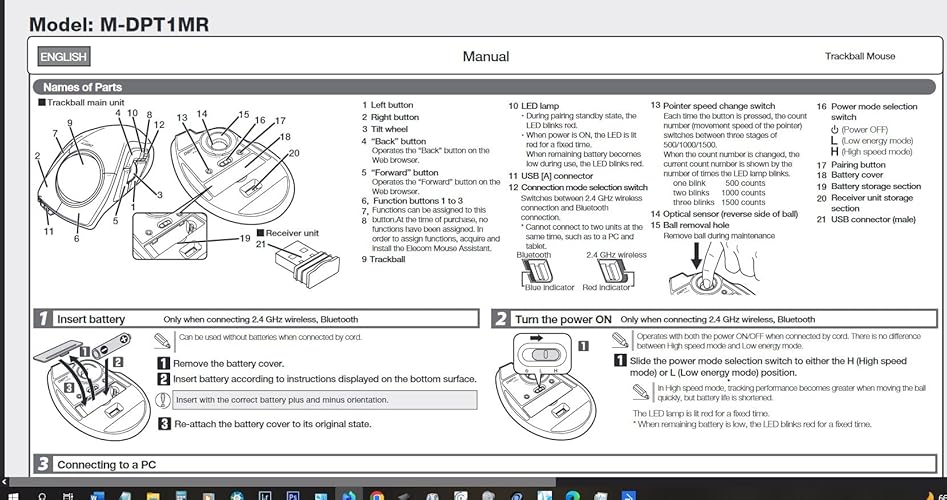
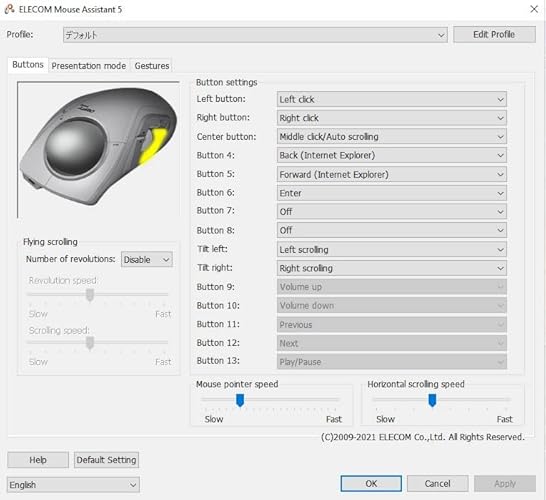
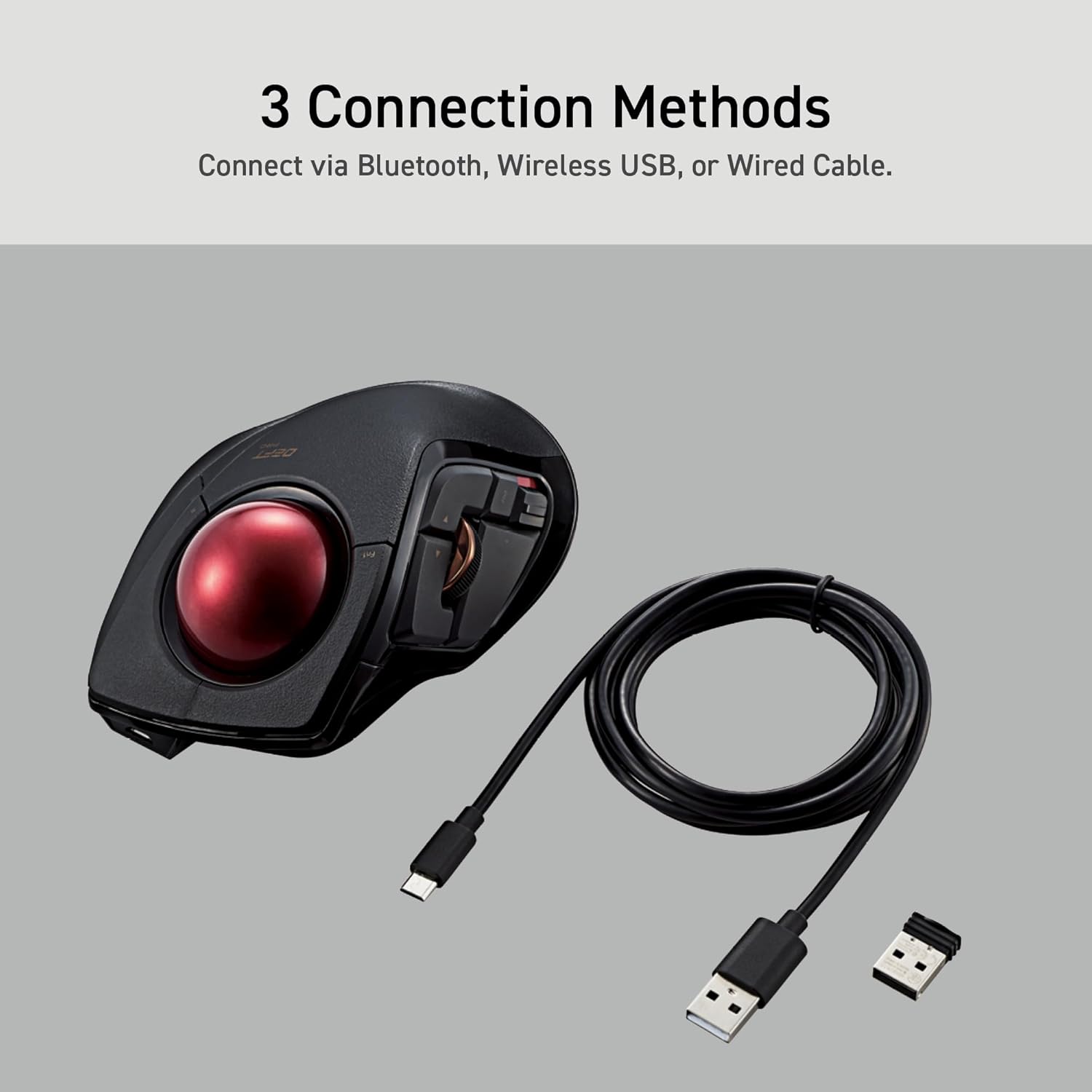
✅《OPTICAL TRACKING TECHNOLOGY》The ELECOM "DEFT PRO" trackball provides precise cursor movement for superior accuracy so you can get where you want on the screen quickly with less hand movement, improving productivity and efficiency. ✅《FUNCTIONAL 8 BUTTONS》You can assign favorite function to each button by using "ELECOM Mouse Assistant" ELECOM Mouse Assistant Software will be available to download from ELECOM NET website. ✅《DPI CURSOR》Designed with a high-performance gaming optics system sensor and lens. The DPI button can easily change between 500, 1000 and 1500 DPI, making the movements of your cursor faster or slower. ✅《EASY MAINTENANCE》The ball rolls on three 2.5 mm large artificial ruby ball bearings. They are extremely smooth and the relatively large size prevents dust and dirt from clogging them. So you don’t have to clean the ball bearings too often. The ball is held in place by the ball bearings, but can easily be popped out of the device, by pushing it through the hole in the bottom and it can be easily cleaned. ✅《PRODUCT DETAILS》System requirements: Windows 8, Windows 10, Windows 11 or later (Horizontal scrolling function is not working in Windows RT8.1), macOS 10.13 or later, Size: W3.6"(91.4mm) X L5.3"(133.4mm) X H2.3"(57.3mm), Weight: 5.7oz(without battery), DPI: 500/1000/1500 count (switchable), Connectivity: wired / wireless / bluetooth
Details
Features & Specs
- Connectivity Technology
- Bluetooth, Wired, Wireless
- Additional Features
- Bluethooth, Programmable Buttons
- Movement Detection
- Trackball
- Button Quantity
- 8
- Hand Orientation
- Right
- Compatible Devices
- Personal Computer
- Operating System
- Windows 10
- Number of Batteries
- 1 AA batteries required. (included)
- Hardware Platform
- Laptop, PC
- Power Source
- Battery Powered
- Mouse Maximum Sensitivity
- 1500 Dots per Inch
- Minimum Required Operating System Version
- Windows 10
- Range
- 10.0 meters
Style
- Color
- Black / Red ball
- Style Name
- Trackball Mouse
Measurements
- Item Weight
- 5.76 ounces
- Item Dimensions L x W
- 5.25"L x 3.6"W
- Unit Count
- 1.0 Count
Warranty & Support
- Warranty Description
- 3 year manufacturer
Item Details
- Brand
- ELECOM
- Model Name
- Deft Pro
- Antenna Location
- Gaming
- Model Number
- M-DPT1MRXBK
- Built-In Media
- AA battery, cable, mouse, user manual
- Are Batteries Included
- Yes
- Are Batteries Required
- Yes
- Manufacturer
- ELECOM
- Mfr Part Number
- M-DPT1MRXBK
- Item Type Name
- ELECOM HUGE Wired / Wireless / Bluetooth Finger-operated Trackball Mouse, 8-Button Function with Smooth Tracking, Precision Optical Gaming Sensor (M-DPT1MRXBK)
Materials & Care
- Enclosure Material
- Plastic
Frequently asked questions
- What connectivity options does this trackball mouse offer?
- It offers wired, wireless, and Bluetooth connectivity, as listed under Connectivity Technology.
- How many buttons does it have and can they be customized?
- It has 8 buttons, and you can assign favorite functions to each button using the ELECOM Mouse Assistant software.
- What is the DPI range and is it adjustable?
- The DPI can be switched between 500, 1000, and 1500 DPI using the DPI button.
Customer reviews

Very comfortable to use, worked perfectly out of the box
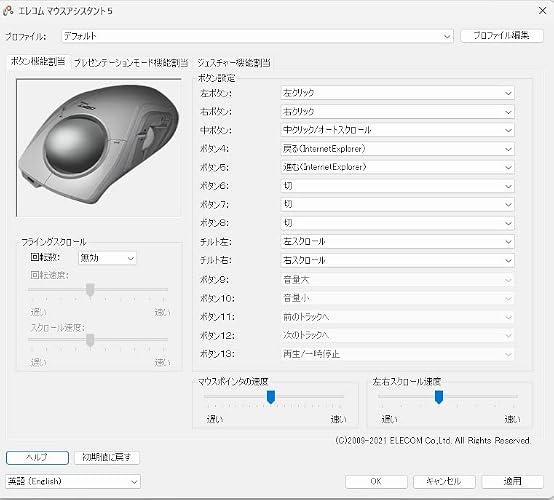
It took me a whole 5 minutes to get used to. I didn't even load the software for it, and I really don't care because it was perfect the way it is. I have read reviews about impeded movement of the track ball and complaints about the instructions. I found neither of these complaints to be an issue for me. It just works so very well. So I have been using PC's since the dawn back in the 80's. My favorite pointing device has been the Kensington Expert Mouse. I am on the PC for both professional IT business and personal entertainment for more than 12 hours every day, so ergonomics is very important to me. This track bal has been great so far, and has eliminated pain from repetive motion that I have experienced from most mouse / trackball devices. So far I have to say after 3 hours of use, this device, the Elecom Deft Pro has been excellent. The trackball is in a really good position, and so is the scroll wheel. The locations of the left and right mouse buttons, on either side of the scroll wheel, is highly intuitive. It is very fluid and can cover a lot of screen real estate quickly, and yet be super precise about positioning the mouse cursor, such as when you want to highlight the first 8 characters of a word or sentence. It is also great for free form outlining of graphical elements in photo editing software. I will update my review over time, but so far this one is the best I have used. Update 1/29/2023 I lowered my rating because you apparently have to be able to read Japanese to be able to configure the mouse. So when I got it and plugged it into the usb port on my computer, it automatically installed the driver and works ok, but there was no way to change the functions of the various buttons. So I downloaded the app from the Elecom website and installed it. The app appears to change the function of the buttons, but none of it is in English so it is not usable for me. There was a language selection to choose English on the lower left, but as you can see from the attached screen shot, it is not in English. Update 2/4/2023 I changed my rating to 4 stars because the ergonomics of this track ball are really good. I am on the computer so much that I get a lot of pain from operating the mouse. This one is the most comfortable mouse device I have used so far. The ball is large and that gives more speed and precision for those with large monitors and multiple monitors like myself. Update 12/12/2023 I bought my second unit. This is definitely the most comfortable mouse/track ball I've ever used. I moved the rating back to 5 because I learned that if you run the setup program twice, that the app will appear in English instead of Japanese. This helped a lot but the profile name for the settings is still in Japanese. Overally though this is very wll made, quiet, and easy to use.
It took me a whole 5 minutes to get used to. I didn't even load the software for it, and I really don't care because it was perfect the way it is. I have read reviews about impeded movement of the track ball and complaints about the instructions. I found neither of these complaints to be an issue for me. It just works so very well. So I have been using PC's since the dawn back in the 80's. My favorite pointing device has been the Kensington Expert Mouse. I am on the PC for both professional IT business and personal entertainment for more than 12 hours every day, so ergonomics is very important to me. This track bal has been great so far, and has eliminated pain from repetive motion that I have experienced from most mouse / trackball devices. So far I have to say after 3 hours of use, this device, the Elecom Deft Pro has been excellent. The trackball is in a really good position, and so is the scroll wheel. The locations of the left and right mouse buttons, on either side of the scroll wheel, is highly intuitive. It is very fluid and can cover a lot of screen real estate quickly, and yet be super precise about positioning the mouse cursor, such as when you want to highlight the first 8 characters of a word or sentence. It is also great for free form outlining of graphical elements in photo editing software. I will update my review over time, but so far this one is the best I have used. Update 1/29/2023 I lowered my rating because you apparently have to be able to read Japanese to be able to configure the mouse. So when I got it and plugged it into the usb port on my computer, it automatically installed the driver and works ok, but there was no way to change the functions of the various buttons. So I downloaded the app from the Elecom website and installed it. The app appears to change the function of the buttons, but none of it is in English so it is not usable for me. There was a language selection to choose English on the lower left, but as you can see from the attached screen shot, it is not in English. Update 2/4/2023 I changed my rating to 4 stars because the ergonomics of this track ball are really good. I am on the computer so much that I get a lot of pain from operating the mouse. This one is the most comfortable mouse device I have used so far. The ball is large and that gives more speed and precision for those with large monitors and multiple monitors like myself. Update 12/12/2023 I bought my second unit. This is definitely the most comfortable mouse/track ball I've ever used. I moved the rating back to 5 because I learned that if you run the setup program twice, that the app will appear in English instead of Japanese. This helped a lot but the profile name for the settings is still in Japanese. Overally though this is very wll made, quiet, and easy to use.
deft pro top!!
In sintesi, dopo l'huge ho deciso di passare alla tracball anche su portatile, optando per il compagno "deft pro" (l'huge wi-fi era troppo grande) primo impatto: Top! E cosa importante! non ho neanche dovuto modificarlo sostituendo le sfere originali perchè precise( a quando pare su questa versione pro ci stanno attenti a mettere le sfere precise)! Tempi di adattamento: gli stessi per l'huge! cioè per chi proviene da una trackball simile quasi zero per chi lo sua la prima volta ...ci vuole da prenderci la mano(anche con qualche videogioco) un po' scomodo è il pulsante selezione per i dpi che si trova sotto la base! avrei preferito il pulsante dpi al posto dell pulsante di selezione frequenza bluethooth(che sarebbe stato benissimo sotto) utilizzabile con bluethoot- wifi- cavo lungo 1,5 m.(nella foto vedrete una mia fissazione che di è proteggere le decalcomanie stampate... non fateci caso!) pro: -Platiche ok non danno la sensazione di essere cheap ,la parte superiore è tramata con un bell effetto dove poggia tutta la mano(circa 18 cm dall' medio fino all inizio del polso). -Posizione della mano risulta rilassata anche se più vincolata rispetto all' huge (e anche per questo modello su internet si possono trovare supporti da stampare in 3d per aumentare l'inclinazione è la comodità). -Buona la disposizione dei tasti principali; che sono ben disposti e facilmente raggiungibili. Anche se come tasto destro mi trovo meglio ad usare l'ultimo(fn3) con l'aulare mentre indice e medio controllano la sfera! -La sfera è 44 mm facilmente manovrabile (vola) è sopratutto le sfere che sono precisie (pare che siano apposta selezionate)! - utilizzabile con bluethoot- wifi- cavo lungo 1,5 m contro (ma lo considero proprio inerzia) -il pulante di selezione dei dpi è posizionato sotto la base e ogni volta per cambiarli si deve alzare il mouse, (con led visibile ma discreto che si illumina dagli spazi aperti dalla rotella, - rotella che risulta essere un po'rumorosa rispetto all' huge). - Avrei preferito il pulsante dpi al posto dell pulsante di selezione frequenza bluethooth ! software: software decente con possibilità di personalizzare il mouse con diversi profili. Essendo il mouse senza memoria interna, si deve avere in funzione il software in background per averlo personalizzato. e qui mi sembra che sia da migliorare! nel fatto che essendo "vincolato a tenerlo attivo) sarebbe bello che il software riconoscesse i programmi in uso, è in automatico caricasse il profilo in automatico (altri software lo fanno) invece ogni volta prima di utilizzare un profilo per un determinato programma lo si deve selezionare. pps per la elecom.... sarebbe bello se potete mettere sul mercato almeno la sfera trakball di ricambio, visto che è la parte che con l'uso può rovinarsi di piu !
In sintesi, dopo l'huge ho deciso di passare alla tracball anche su portatile, optando per il compagno "deft pro" (l'huge wi-fi era troppo grande) primo impatto: Top! E cosa importante! non ho neanche dovuto modificarlo sostituendo le sfere originali perchè precise( a quando pare su questa versione pro ci stanno attenti a mettere le sfere precise)! Tempi di adattamento: gli stessi per l'huge! cioè per chi proviene da una trackball simile quasi zero per chi lo sua la prima volta ...ci vuole da prenderci la mano(anche con qualche videogioco) un po' scomodo è il pulsante selezione per i dpi che si trova sotto la base! avrei preferito il pulsante dpi al posto dell pulsante di selezione frequenza bluethooth(che sarebbe stato benissimo sotto) utilizzabile con bluethoot- wifi- cavo lungo 1,5 m.(nella foto vedrete una mia fissazione che di è proteggere le decalcomanie stampate... non fateci caso!) pro: -Platiche ok non danno la sensazione di essere cheap ,la parte superiore è tramata con un bell effetto dove poggia tutta la mano(circa 18 cm dall' medio fino all inizio del polso). -Posizione della mano risulta rilassata anche se più vincolata rispetto all' huge (e anche per questo modello su internet si possono trovare supporti da stampare in 3d per aumentare l'inclinazione è la comodità). -Buona la disposizione dei tasti principali; che sono ben disposti e facilmente raggiungibili. Anche se come tasto destro mi trovo meglio ad usare l'ultimo(fn3) con l'aulare mentre indice e medio controllano la sfera! -La sfera è 44 mm facilmente manovrabile (vola) è sopratutto le sfere che sono precisie (pare che siano apposta selezionate)! - utilizzabile con bluethoot- wifi- cavo lungo 1,5 m contro (ma lo considero proprio inerzia) -il pulante di selezione dei dpi è posizionato sotto la base e ogni volta per cambiarli si deve alzare il mouse, (con led visibile ma discreto che si illumina dagli spazi aperti dalla rotella, - rotella che risulta essere un po'rumorosa rispetto all' huge). - Avrei preferito il pulsante dpi al posto dell pulsante di selezione frequenza bluethooth ! software: software decente con possibilità di personalizzare il mouse con diversi profili. Essendo il mouse senza memoria interna, si deve avere in funzione il software in background per averlo personalizzato. e qui mi sembra che sia da migliorare! nel fatto che essendo "vincolato a tenerlo attivo) sarebbe bello che il software riconoscesse i programmi in uso, è in automatico caricasse il profilo in automatico (altri software lo fanno) invece ogni volta prima di utilizzare un profilo per un determinato programma lo si deve selezionare. pps per la elecom.... sarebbe bello se potete mettere sul mercato almeno la sfera trakball di ricambio, visto che è la parte che con l'uso può rovinarsi di piu !


M-DPT1MR is Good MS Trackball Explorer Alternative
These reviews seem to cover several models of Elecom trackballs - this review is specifically for the DEFT Pro model M-DPT1MR (middle size, between small blue-ball and the "Huge"). I have tried several trackballs from several manufacturers, trying to find a decent replacement for my failing Microsoft Trackball Explorer (MTSE). The M-DPT1MR is the closest substitute I have found yet. Although the basic shape does not fit my hand quite as well as the MTSE, the shape still is close enough to provide much of the same comfortable ergonomic fit. The main difference is the lack of a "landing area" at the wrist end of the trackball. With the M-DPT1MR, your wrist will rest on the table instead of up on the trackball itself. HOWEVER, I have found that using the proper wrist pad makes an acceptable substitute, positioning my wrist/palm in a very similar position as on the MSTE (see my comparison photo). The M-DPT1MR looks smaller in the photo, but with the extension of the wrist pad, the hand position is very similar. From the photo, the M-DPT1MR ball looks much smaller than the ball of the MSTE, but the measured diameters are very similar (44mm vs 46mm, respectively). I do not notice any difference due to ball size during usage. Ball operation is very smooth. The center and right button placement is not quite as comfortable as the MSTE - the buttons are a bit too close to the ball, and a bit smaller than the MSTE's. But, I have been able to adapt after using the M-DPT1MR for a while. Not too hard a transition. As other reviews have noted, the scroll wheel has a noticeable "clicking" or notched feel. I personally do not have an issue with this - I only really notice it when scrolling long pages quickly, but even then it is not too bad. Seems to smooth out over time. The wheel's click operation is a bit stiffer than the MSTE, but again surmountable, at least for me. The main left-click button seems perfectly natural for me. The Elecom Mouse Assistant software seems to provide all the control I need, for speeds, inertial momentum, and button assignments. I could map the buttons just as I had done for the MSTE. I like the extra buttons for custom mapping, but frankly have not used them much so far. I do wish it was easier to find an English version of the user's manual - it does not come in the packaging, nor is there a clue about where to find it. Unfortunately, Amazon does not allow me to try to help by posting the links here. All in all, so far I have been quite satisfied with the M-DPT1MR. For many people, it may certainly be a reasonable alternative for the MS Trackball Explorer.
These reviews seem to cover several models of Elecom trackballs - this review is specifically for the DEFT Pro model M-DPT1MR (middle size, between small blue-ball and the "Huge"). I have tried several trackballs from several manufacturers, trying to find a decent replacement for my failing Microsoft Trackball Explorer (MTSE). The M-DPT1MR is the closest substitute I have found yet. Although the basic shape does not fit my hand quite as well as the MTSE, the shape still is close enough to provide much of the same comfortable ergonomic fit. The main difference is the lack of a "landing area" at the wrist end of the trackball. With the M-DPT1MR, your wrist will rest on the table instead of up on the trackball itself. HOWEVER, I have found that using the proper wrist pad makes an acceptable substitute, positioning my wrist/palm in a very similar position as on the MSTE (see my comparison photo). The M-DPT1MR looks smaller in the photo, but with the extension of the wrist pad, the hand position is very similar. From the photo, the M-DPT1MR ball looks much smaller than the ball of the MSTE, but the measured diameters are very similar (44mm vs 46mm, respectively). I do not notice any difference due to ball size during usage. Ball operation is very smooth. The center and right button placement is not quite as comfortable as the MSTE - the buttons are a bit too close to the ball, and a bit smaller than the MSTE's. But, I have been able to adapt after using the M-DPT1MR for a while. Not too hard a transition. As other reviews have noted, the scroll wheel has a noticeable "clicking" or notched feel. I personally do not have an issue with this - I only really notice it when scrolling long pages quickly, but even then it is not too bad. Seems to smooth out over time. The wheel's click operation is a bit stiffer than the MSTE, but again surmountable, at least for me. The main left-click button seems perfectly natural for me. The Elecom Mouse Assistant software seems to provide all the control I need, for speeds, inertial momentum, and button assignments. I could map the buttons just as I had done for the MSTE. I like the extra buttons for custom mapping, but frankly have not used them much so far. I do wish it was easier to find an English version of the user's manual - it does not come in the packaging, nor is there a clue about where to find it. Unfortunately, Amazon does not allow me to try to help by posting the links here. All in all, so far I have been quite satisfied with the M-DPT1MR. For many people, it may certainly be a reasonable alternative for the MS Trackball Explorer.

Great for Large Hands!
I use the computer for navigating the internet & as a photographer. My hands are pretty large 8" & 1/4. I have always had problems with hand cramps because I have to hold the mouse in sort of a pinch position. For many years I was in love with the original Microsoft big track ball (2010) but they were discontinued so I have been searching for something similar for quite a while. So far this has been a great alternative. I use Lightroom & Photoshop almost daily, sometimes up to 10 hours a day along with a Wacom Tablet for detailed editing but I never liked the Wacom for navigating the internet or programs. The Def Pro has solved all my problems with cramping since it completely changes hand movement. I don't have to pinch the mouse to right & left click because the device comfortably fits in my palm with my fingers relaxed. The thumb becomes the left click, the middle finger becomes the right click & because of the track ball design I can rest the heel of my hand on the desk comfortably. The ball is precise but only as accurate as your finger dexterity. I actually had to slow the speed down a bit. There has been no jumping, stickiness or drag to the ball at all. The thumb wheel is more precise to input than most mice I have used & I have used quite a few. While navigating a page you can scroll back & forth for up & down or tilt the wheel up & down to go right & left. It is a bit tricky downloading the (foreign language) instructions but with persistence & guessing it's not that difficult finding the English version. The mouse works fine out of the box, even with Windows 10 but downloading the Mouse Assistant allows giving the buttons specific operations or changing the function of them. Once you are in the Assistant, it's very simple to use. I'm not a gamer so I have no complaints about the functions available. The only problem I have is that the mouse doesn't wake up after the computer goes to sleep but that may be something to do with the fact that I am using Windows 10 & this device is advertised for Windows 11. I did figure out a workaround of just unplugging the USB plug momentarily which wakes up the mouse which is fine until I upgrade to Win 11. Overall I gave this device 5 stars because it works as advertised & better than several alternatives I tried previously at different price points. I'm not a heavy gamer but I am a heavy mouse user & this item seems to be a good value for function, quality & price. I would definitely buy again or try other ELECOM products.
I use the computer for navigating the internet & as a photographer. My hands are pretty large 8" & 1/4. I have always had problems with hand cramps because I have to hold the mouse in sort of a pinch position. For many years I was in love with the original Microsoft big track ball (2010) but they were discontinued so I have been searching for something similar for quite a while. So far this has been a great alternative. I use Lightroom & Photoshop almost daily, sometimes up to 10 hours a day along with a Wacom Tablet for detailed editing but I never liked the Wacom for navigating the internet or programs. The Def Pro has solved all my problems with cramping since it completely changes hand movement. I don't have to pinch the mouse to right & left click because the device comfortably fits in my palm with my fingers relaxed. The thumb becomes the left click, the middle finger becomes the right click & because of the track ball design I can rest the heel of my hand on the desk comfortably. The ball is precise but only as accurate as your finger dexterity. I actually had to slow the speed down a bit. There has been no jumping, stickiness or drag to the ball at all. The thumb wheel is more precise to input than most mice I have used & I have used quite a few. While navigating a page you can scroll back & forth for up & down or tilt the wheel up & down to go right & left. It is a bit tricky downloading the (foreign language) instructions but with persistence & guessing it's not that difficult finding the English version. The mouse works fine out of the box, even with Windows 10 but downloading the Mouse Assistant allows giving the buttons specific operations or changing the function of them. Once you are in the Assistant, it's very simple to use. I'm not a gamer so I have no complaints about the functions available. The only problem I have is that the mouse doesn't wake up after the computer goes to sleep but that may be something to do with the fact that I am using Windows 10 & this device is advertised for Windows 11. I did figure out a workaround of just unplugging the USB plug momentarily which wakes up the mouse which is fine until I upgrade to Win 11. Overall I gave this device 5 stars because it works as advertised & better than several alternatives I tried previously at different price points. I'm not a heavy gamer but I am a heavy mouse user & this item seems to be a good value for function, quality & price. I would definitely buy again or try other ELECOM products.